
How to Add Plugins to Logic Pro X
Installing, Adding, and Inserting plugins is one of those things we do all the time in Logic Pro X so getting familiar with it is vital.
Let me show you how to download, install, and insert effect and VST plugins to Logic Pro X.
How to Install Logic Pro X Plugins
If the plugin you are downloading installs automatically then you can follow these instructions:
- Download the Mac plugin
- Unpack the zip file
- Install the plugin
- Open Logic Pro X (and the session you want to use) - You will notice the AU Plugin Manager fires up as it recognises the new AU you have just installed.
- Click ‘Add Tracks’ (Alt+Cmd+N)
- In the pop-up window, select the instrument from ‘AU Instruments’
- Once selected, click on ‘Create’
- This will then add the AU Instrument plugin to your logic session
How to Add VST/AU to Logic Pro X
Sometimes you have to install the plugins manually:
- Download the plugin
- Unpack the zip file
- Move the [Your Hard Drive] > Library > Audio > Plug-Ins
- From here you will need to choose the appropriate folder. If you are installing a component then it needs to be placed in the ‘Component’ folder. This goes for AU, VST, HAL, VST3 etc.
Once you have moved the plugin file into the correct place:
Open Logic Pro X (and the session you want to use) - You will notice the AU Plugin Manager fires up as it recognises the new AU you have just installed.
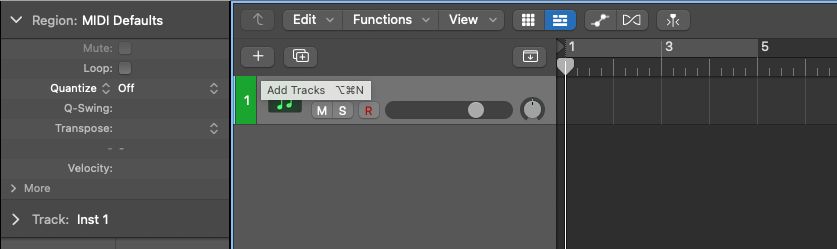
Click ‘Add Tracks’ (Alt+Cmd+N)
In the pop-up window, select the instrument from ‘AU Instruments’
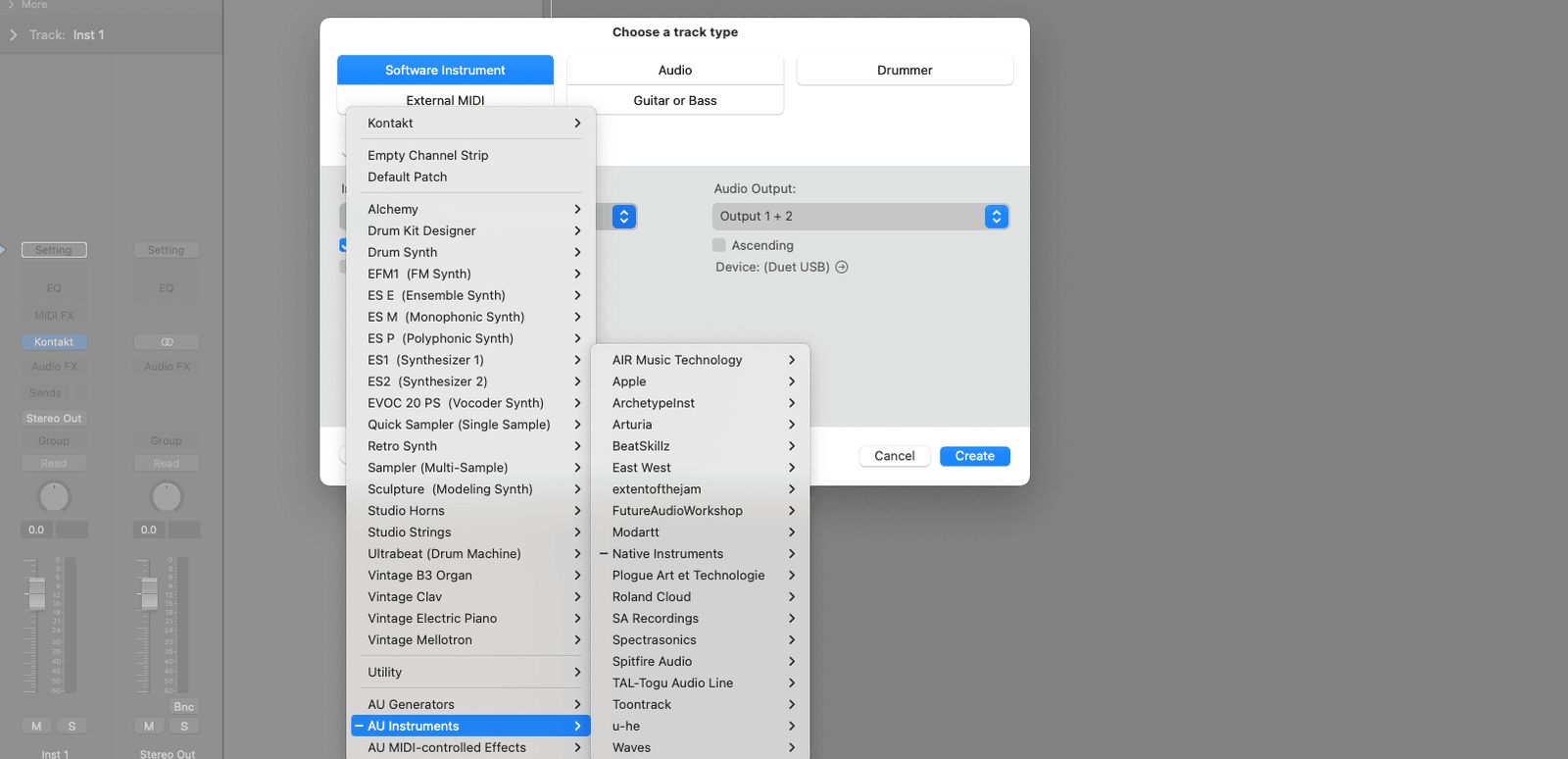
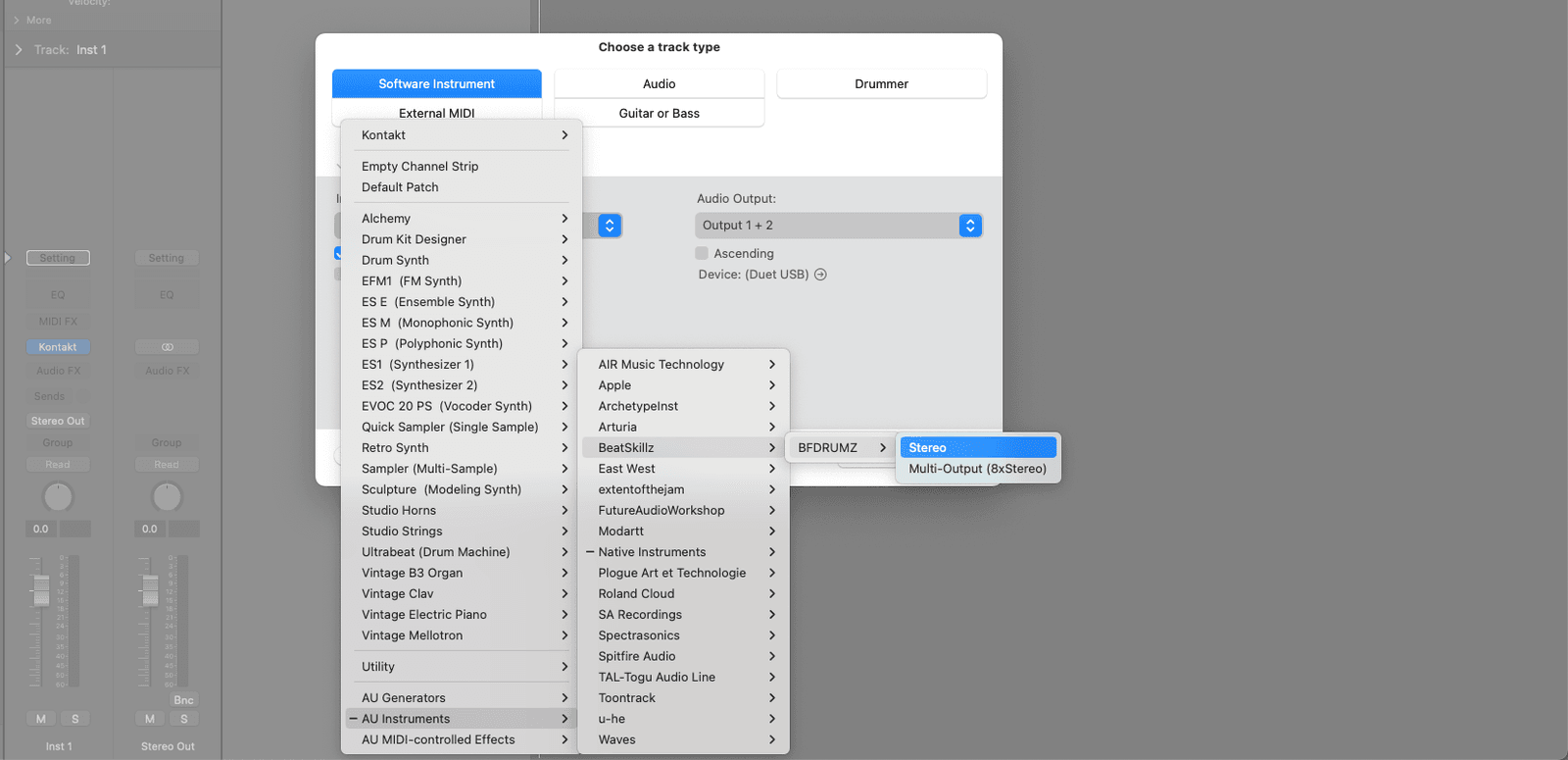
Once selected, click on ‘Create’
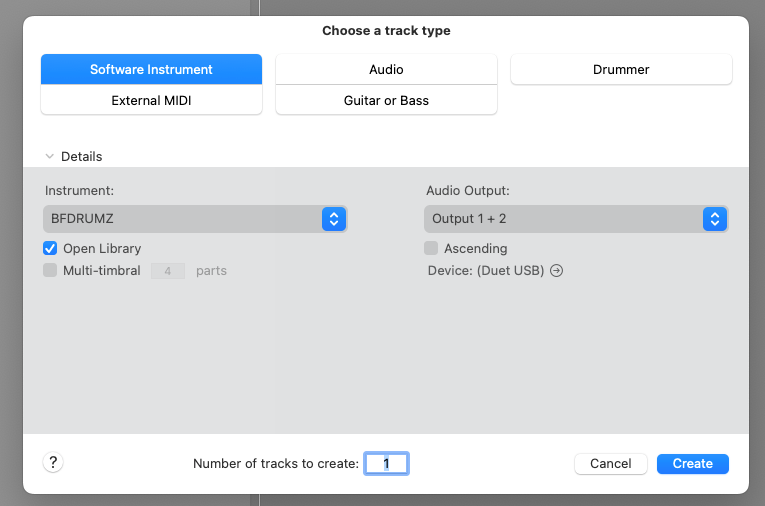
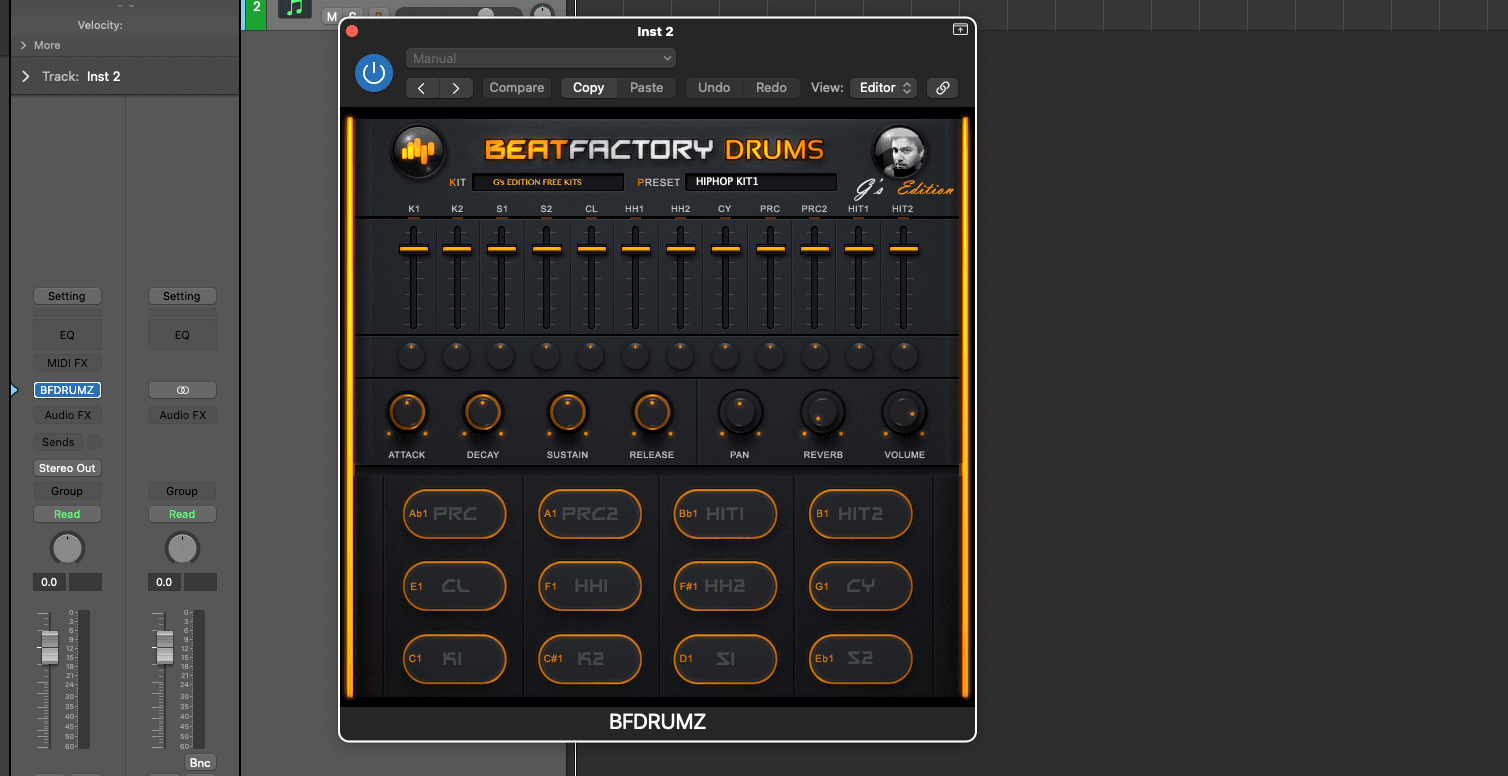
This will then add the AU Instrument plugin to your logic session
How to Insert Plugins to Logic Pro X
To insert an effect plugin to Logic Pro X:
On the channel strip, click on Audio FX
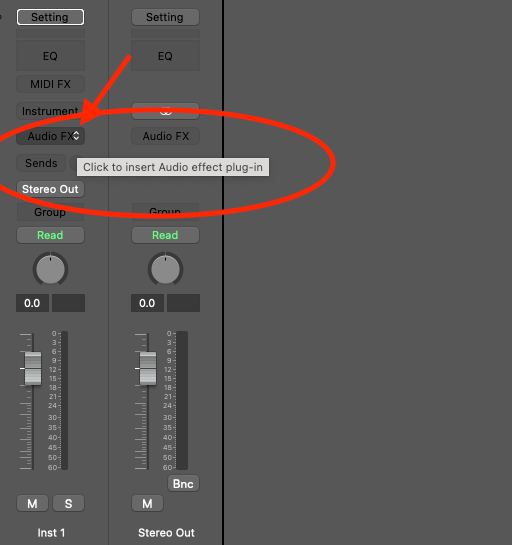
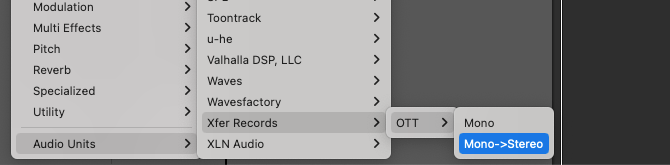
From the dropdown menu, select AU Plugins
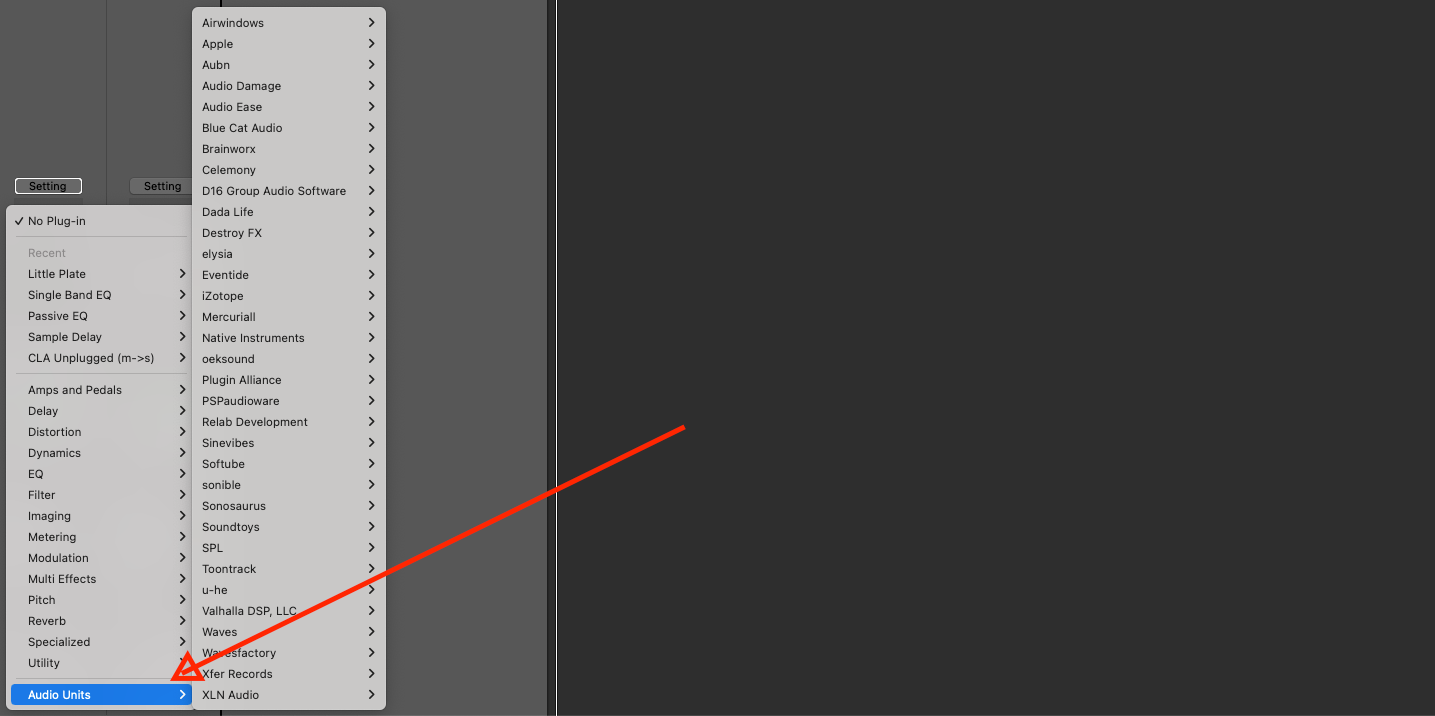
Select the plugin you want to use
How to Use Plugins in Logic Pro X
Once you have installed your plugin to Logic, you can start using it.
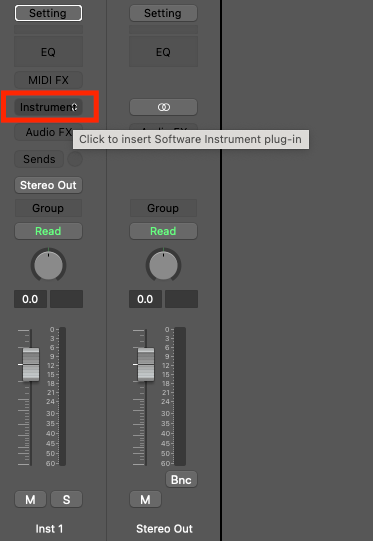
To insert your plugins:
On the channel strip, click on ‘Instrument’
Go down to AU Instruments
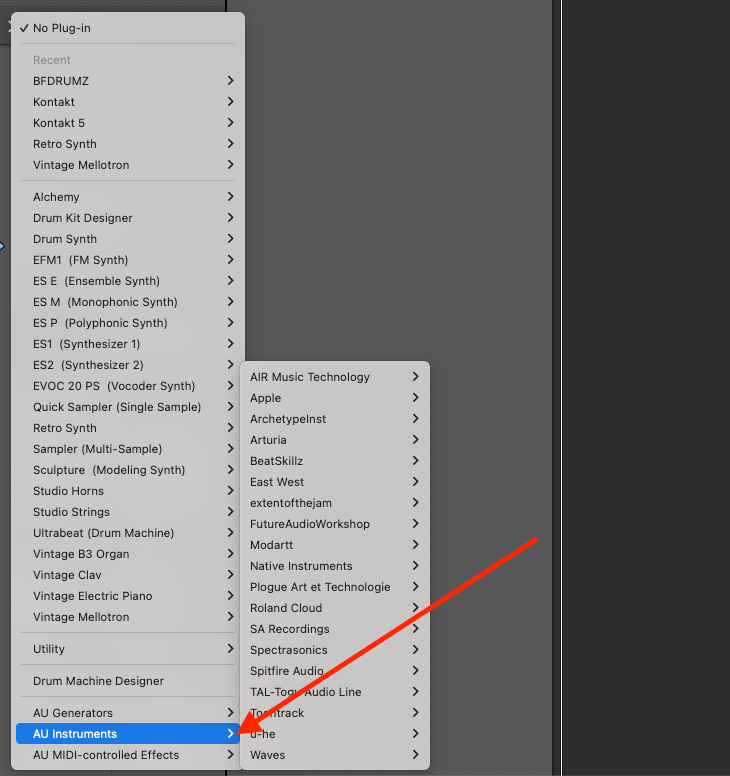
Select the plugin you want to use
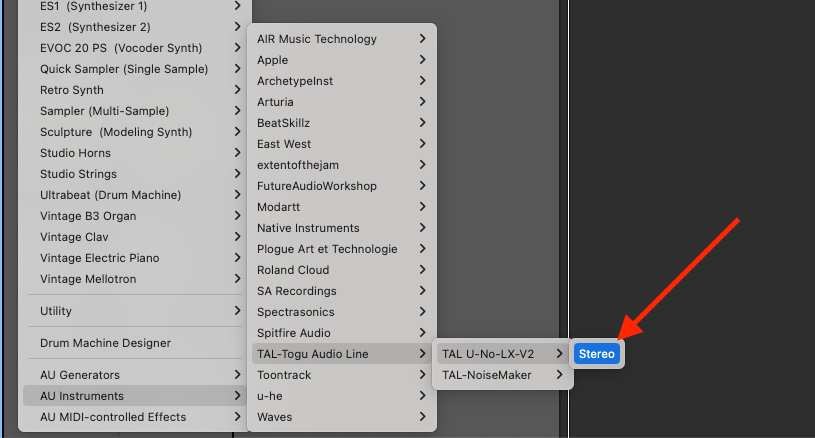
There you have it, your plugin is now ready to use.
Logic is Not Recognising My Plugins
If you have followed the instructions above but you cannot see your plugin in Logic then try these steps to fix the issue:
- Run AU Manager in Logic Pro
- Restart your computer (this will kick start the AU Manager to rescan)
This may resolve the issue, otherwise, you may be given the error message that the plugin failed Logic’s validation scan in which case it will not open the plugin (Ah, biscuits!)
Happy Producing!

Happy composing!Rich
Read next
- Auto Colour Tracks in Logic
Do you want to make your Logic Pro session easier to navigate and at the same time make it look like an artist's paint palette? Then you need 'Auto-assign track colours'! Let me show you...
- How to Send a Logic Pro X Project
I frequently need to send Logic projects to other composers for collaborations and for recording sessions when I record with an orchestra. It is very simple to do, you just have…
- How to Create a Click Track In Logic Pro X
Sometimes you need to have the click created as a track in logic so that you can share the printed audio file with other producers. Let me show you how to do this.
- How to Colour Markers in Logic Pro X
When creating an arrangement of a piece of music or a song it is really important to be able to quickly and easily navigate around the individual sections. That is where coloured markers can come in handy.