
How To Change The Key Of A Loop In Logic Pro X
You're working on a track in A# and can't find any loops in that key, so what do you do? You change the key of the loops that's what!

In this article, I am going to show you how to change the key of a loop in Logic Pro X.
Set the Key Signature of Your Project
The first port of call is to select the correct key for your project as this will make it easier to work with the loops.
Open the “List Editors”
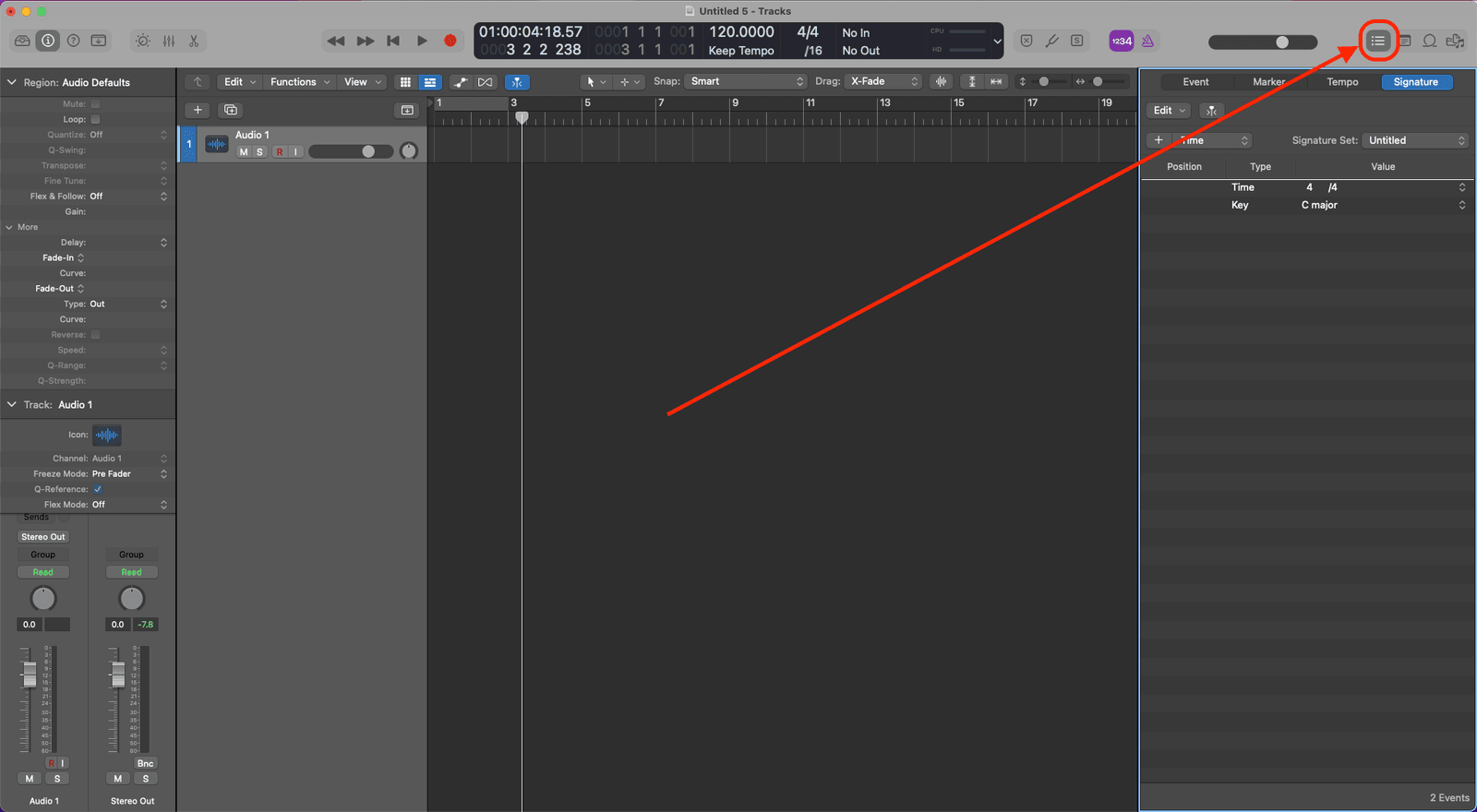
Click on the existing key signature. It is next to where it says “Key” (it should say “C Major” by default)
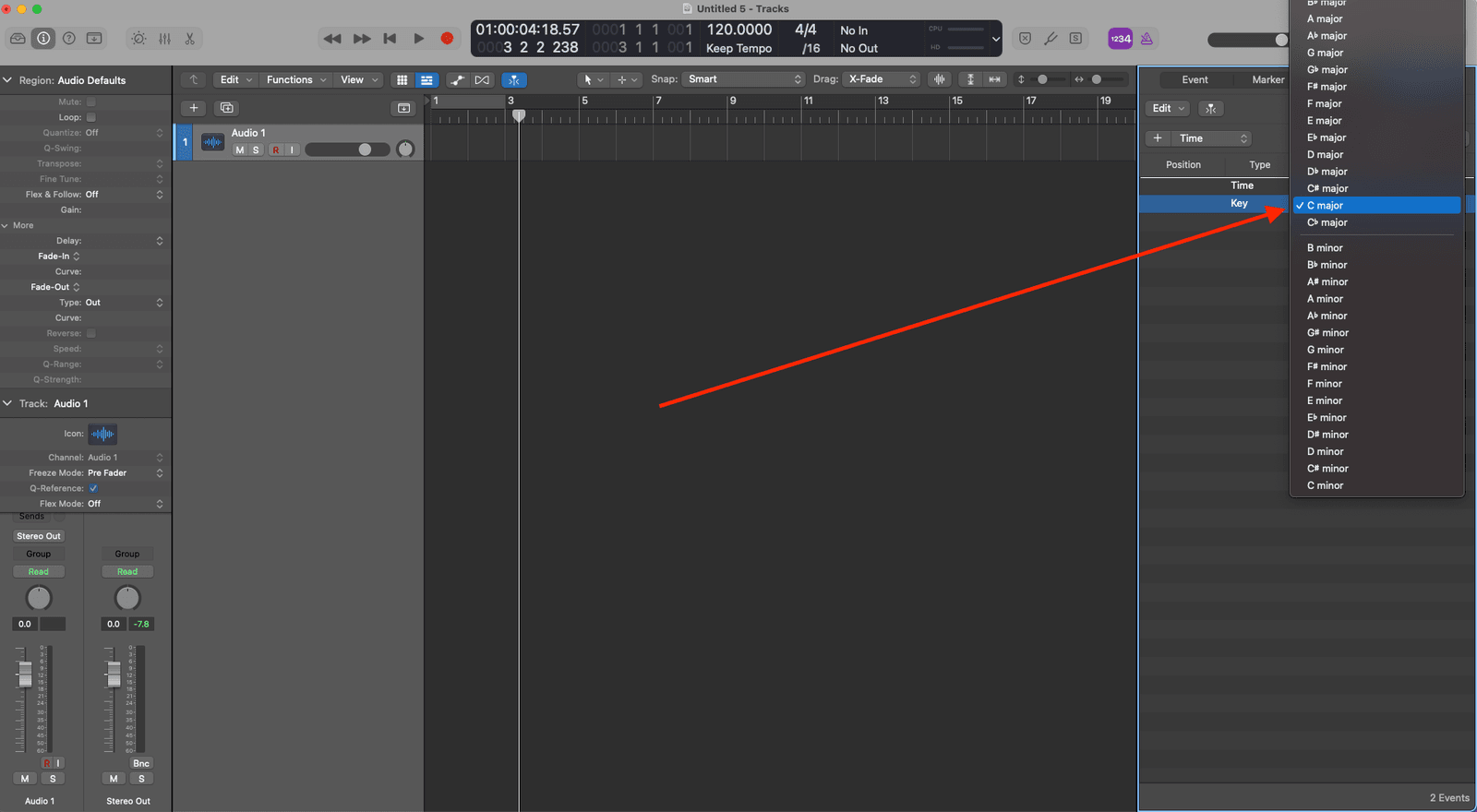
From the dropdown menu select your desired key signature.
Now you have the key of the project set we can now take a look at the loops.
Change the Key of a Loop in the Loop Browser
Open up the loop browser (keyboard shortcut is “O”)
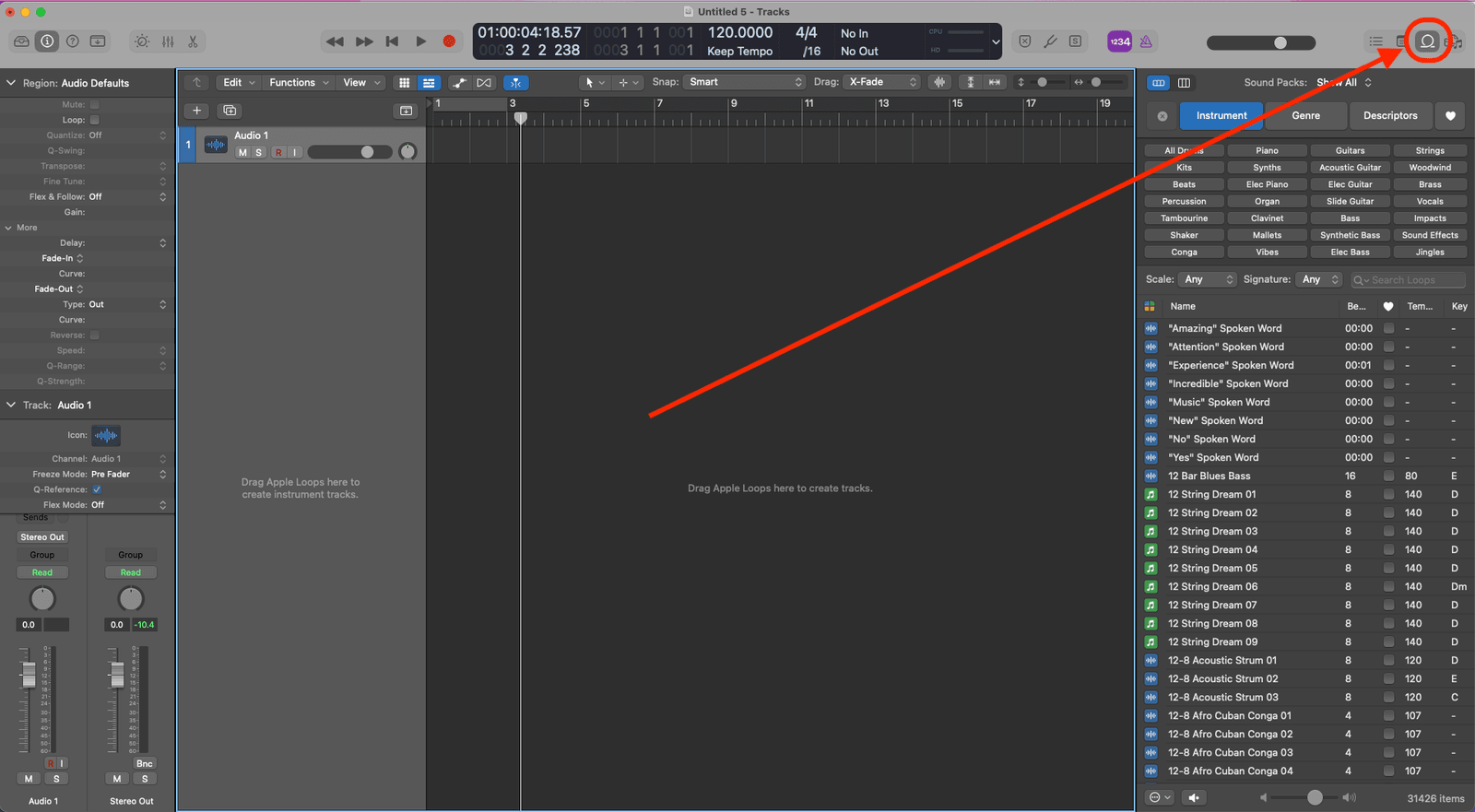
From here, choose the loops you like the sound of (regardless of what key they are in).
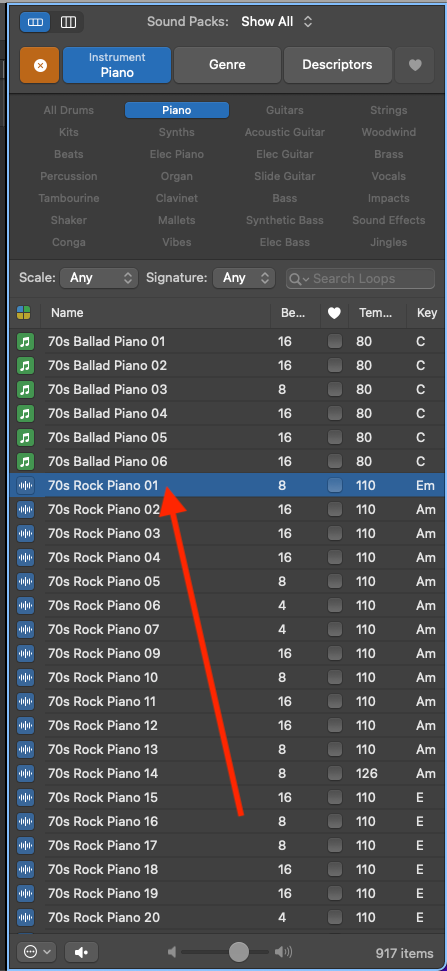
On the bottom left of the loop browser, you should see a circle with three dots in it.
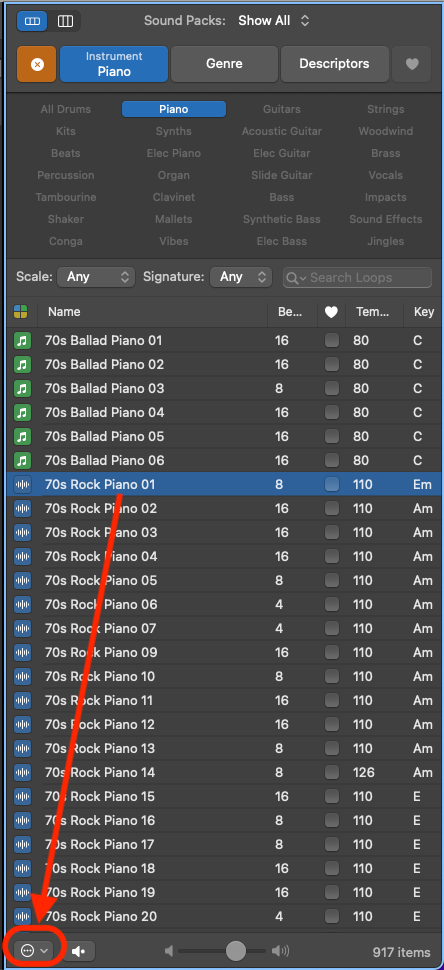
When you click on this it will open up the loop playback settings.
If you want the loops to fit the key your project is in then make sure that “Play in Song Key” is ticked.
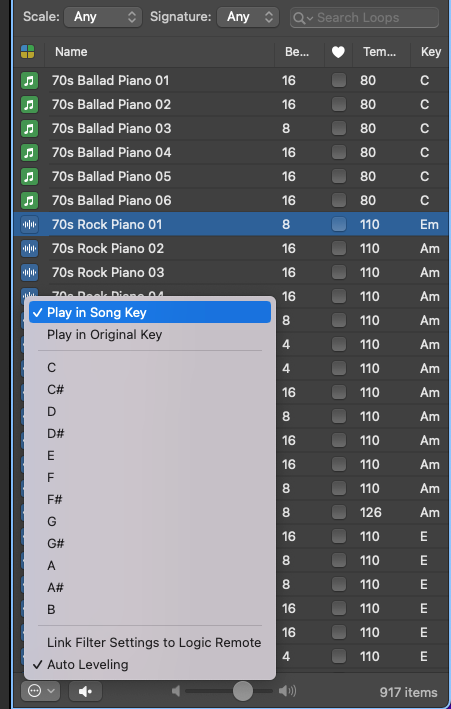
If you want to change the key that the loop plays back in then select it from the dropdown menu.
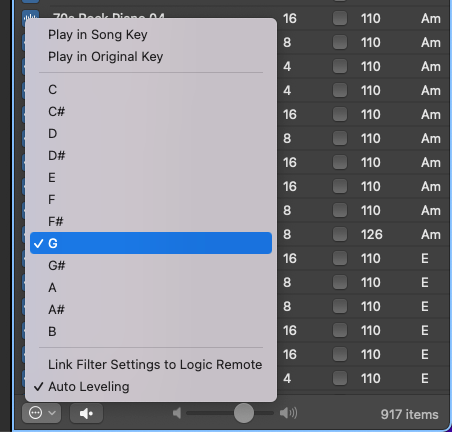
Now when you drop the loop in the project it will be in the key that you have chosen.
Transposing Apple Loops to Match Chord Changes
Let’s say you want to use a loop in your track but you want it to change chords along with the rest of your track.
If you just loop the loop it will stay on the same chord.
The fix for this is to select the region you want to change the chord and in the Region menu double-click on “Transpose”.
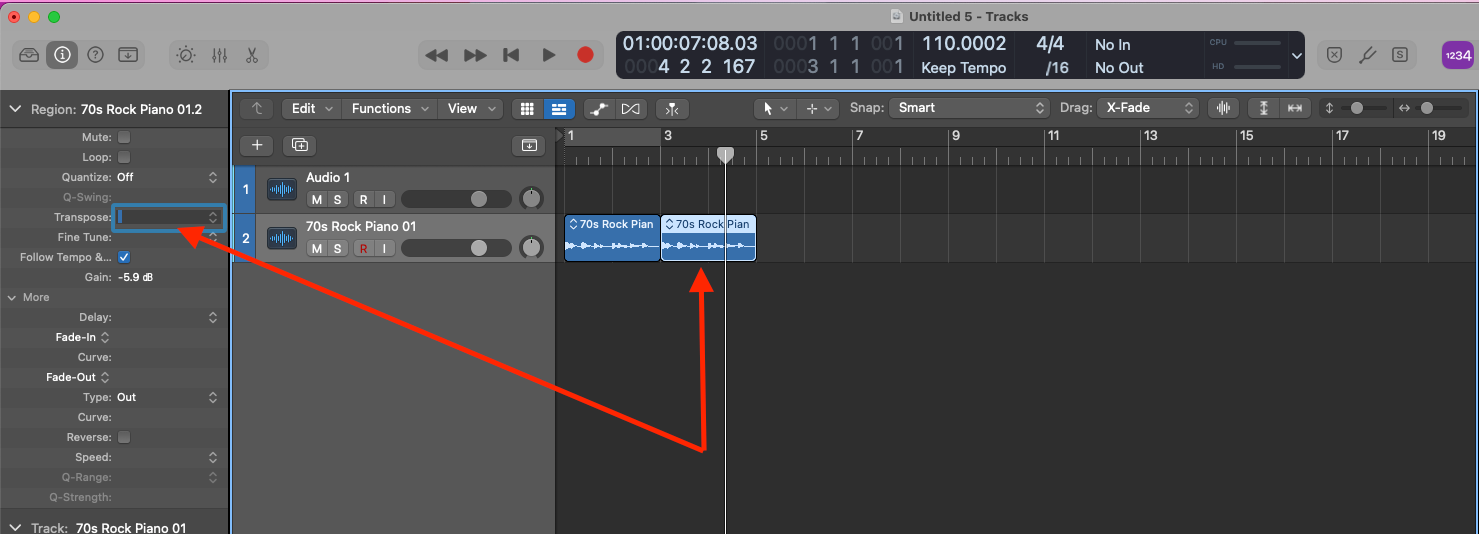
This will reveal a blue border around the box where you can type in how much you want to transpose the region up or down.
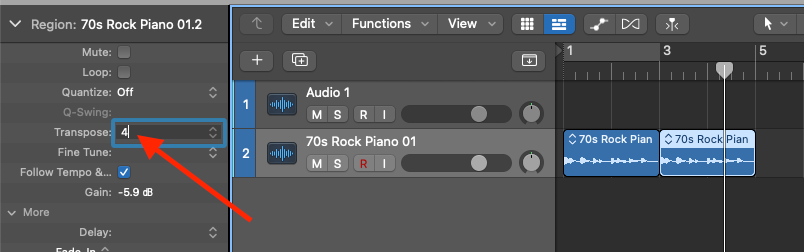
If you want to transpose it up then just add the appropriate number. If you want to transpose down then remember to put a ”-” before the number to make it a negative number.
What is the key command for Loop in Logic?
Select the region you want to loop and press “L”.

Happy composing!Rich
Read next
- Auto Colour Tracks in Logic
Do you want to make your Logic Pro session easier to navigate and at the same time make it look like an artist's paint palette? Then you need 'Auto-assign track colours'! Let me show you...
- How to Send a Logic Pro X Project
I frequently need to send Logic projects to other composers for collaborations and for recording sessions when I record with an orchestra. It is very simple to do, you just have…
- How to Create a Click Track In Logic Pro X
Sometimes you need to have the click created as a track in logic so that you can share the printed audio file with other producers. Let me show you how to do this.
- How to Colour Markers in Logic Pro X
When creating an arrangement of a piece of music or a song it is really important to be able to quickly and easily navigate around the individual sections. That is where coloured markers can come in handy.