
How to Change Tempo in Logic Pro X
the Tempo or speed of a piece of music is one of the seven core elements of music. In order to create music we need to be able to understand and control those elements. In this…
the Tempo or speed of a piece of music is one of the seven core elements of music. In order to create music we need to be able to understand and control those elements. In this post, I show you how to change the tempo in Logic Pro X.
Change the BPM
Locate the ‘Control bar and Display’ in your Logic session. (Just a little note, your control bar might look slightly different to mine).
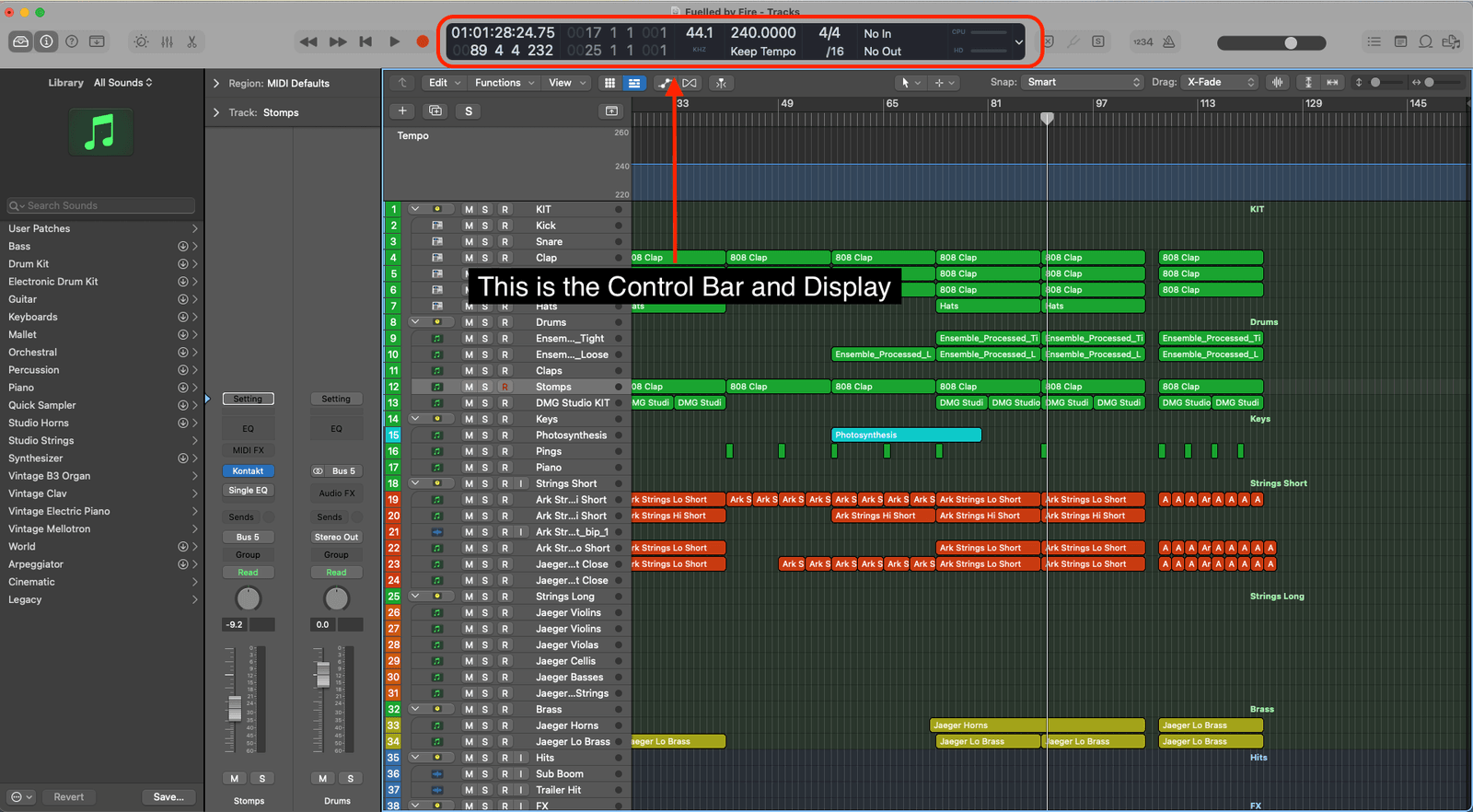
Above where it says “Keep Tempo” in the image you will see 240.0000 - this is the BPM or ‘Beats per Minute’ (tempo) of my track.
Double-click on that number and you can type in the BPM you want.

Adjust the Tempo
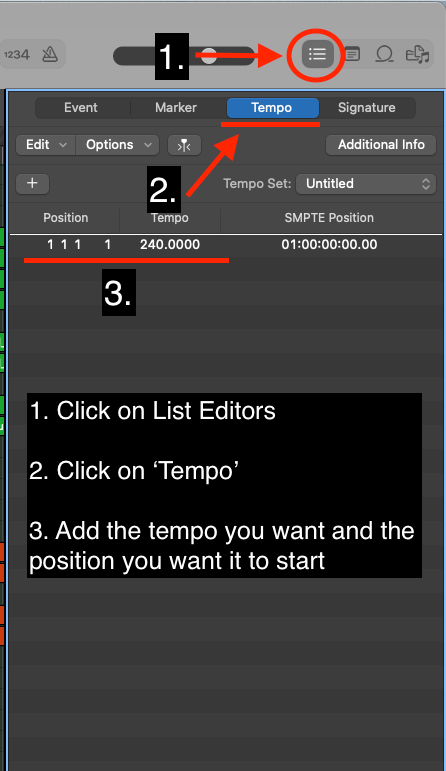
Another way to adjust the tempo of your project is by using the ‘List Editors’.
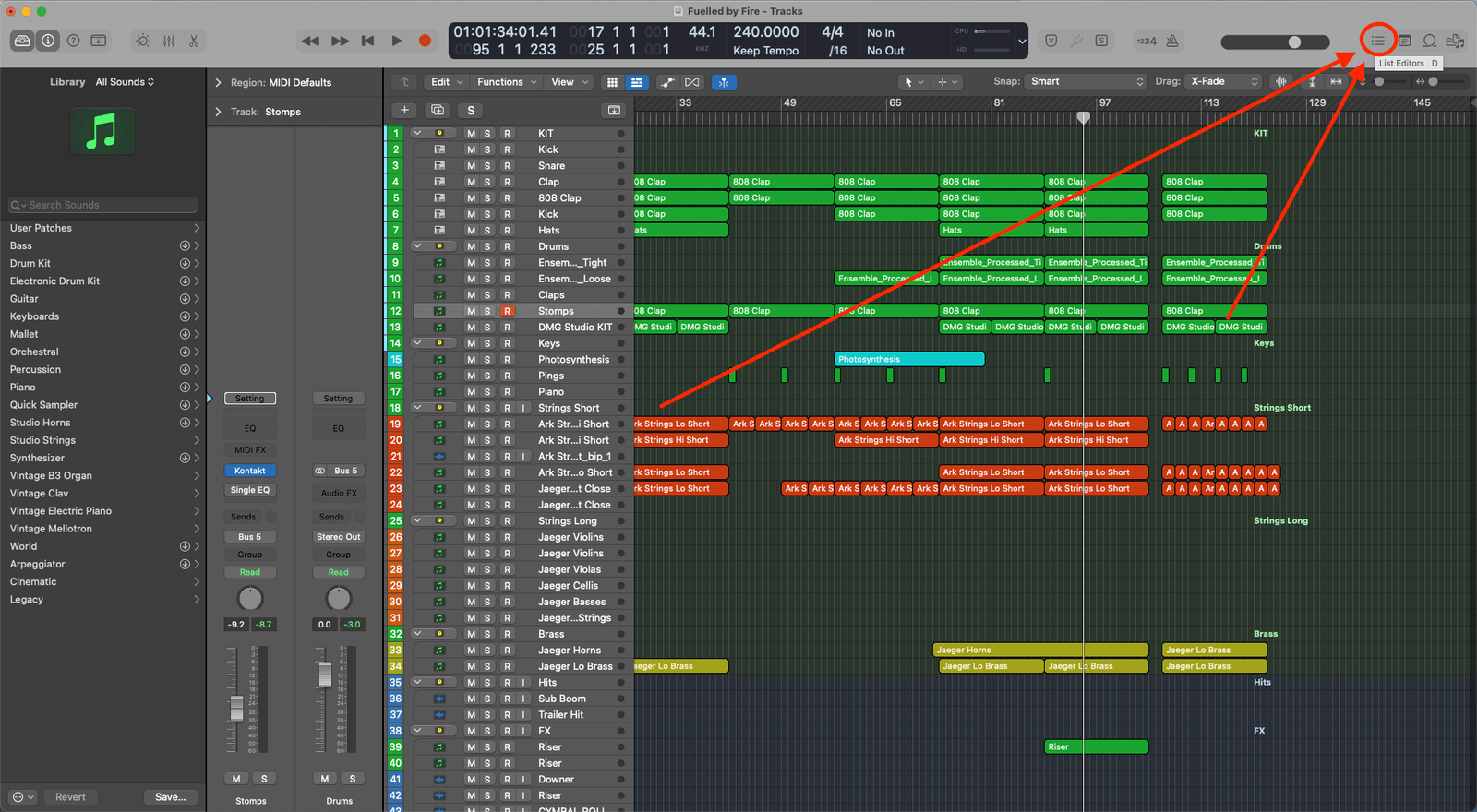
Once you have opened up the ‘List Editors’ then click on ‘Tempo’ to open up the list of your project’s tempos.
Inside the tempo list, click on the ’+’ symbol and a new tempo will be added at your playhead’s exact position.
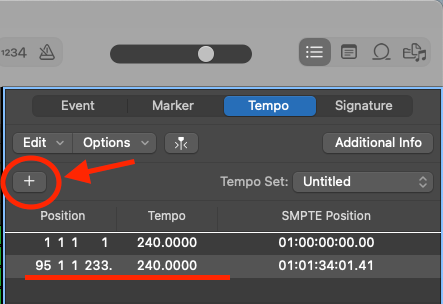
Don’t worry if you have created it in the wrong position. You can either edit the position by double-clicking on it or you can move your playhead to the correct position and click ’+’. Don’t forget to delete the incorrect tempo.
Speed Up the Tempo
If you want to make your track feel like it is speeding up then you will need to open up the ‘Global Tracks’ (hotkey ‘G’).
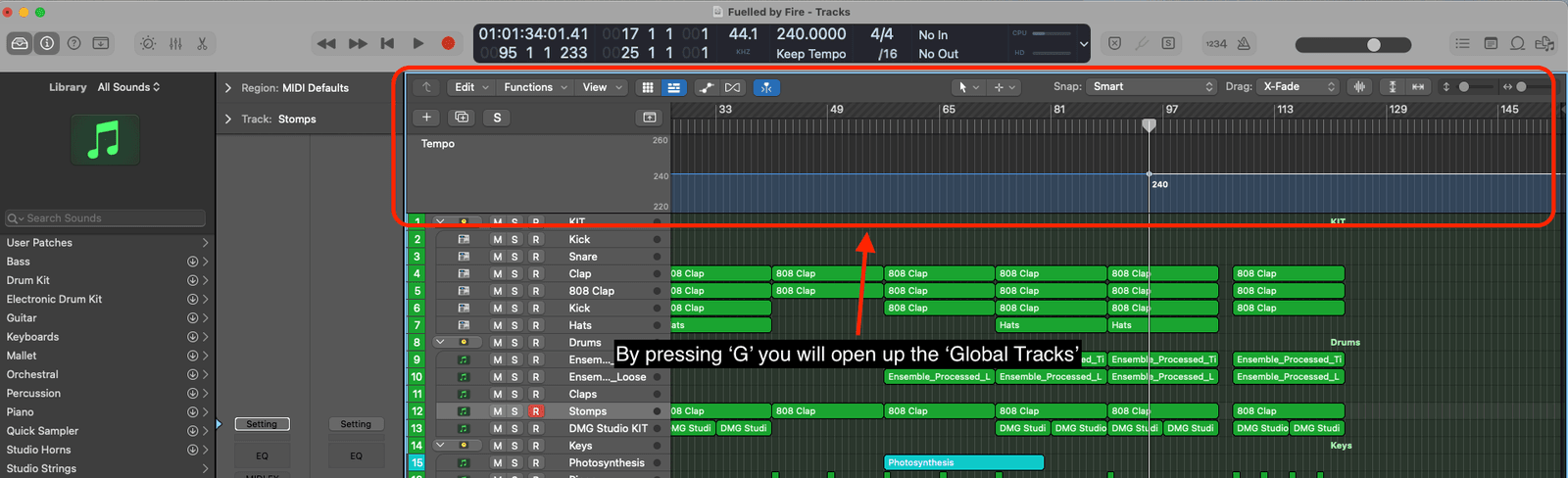
In the ‘Global Tracks’, click on the blue line where you want the tempo to start speeding up and also where you want to speed up to stop.
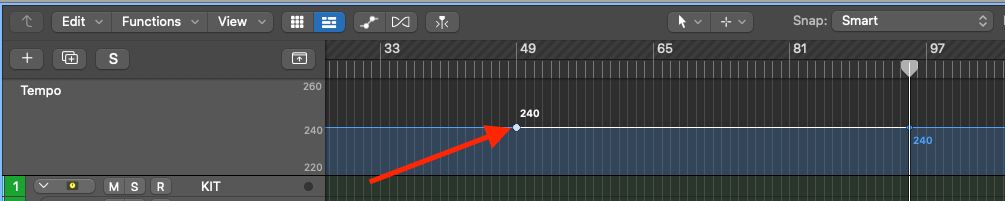
Move the second edit point up to the desired tempo.

You will then see a circle appear underneath the edit point. This is the ‘tempo curve automation point’.
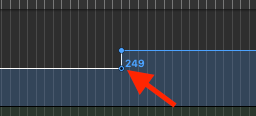
Drag the tempo curve automation point in the middle of the two tempo edit points and it will snap into a smooth accelerando/speed up.

Slow Down the Tempo
To create a slow down of your track you simply follow the steps above except instead of moving the second dot to a higher tempo, you move it to a slower tempo.

Happy Producing!

Happy composing!Rich
Read next
- Auto Colour Tracks in Logic
Do you want to make your Logic Pro session easier to navigate and at the same time make it look like an artist's paint palette? Then you need 'Auto-assign track colours'! Let me show you...
- How to Send a Logic Pro X Project
I frequently need to send Logic projects to other composers for collaborations and for recording sessions when I record with an orchestra. It is very simple to do, you just have…
- How to Create a Click Track In Logic Pro X
Sometimes you need to have the click created as a track in logic so that you can share the printed audio file with other producers. Let me show you how to do this.
- How to Colour Markers in Logic Pro X
When creating an arrangement of a piece of music or a song it is really important to be able to quickly and easily navigate around the individual sections. That is where coloured markers can come in handy.