
5 Logic MIDI Hacks You Are Not Using Enough
Most of us work with MIDI every single time that we create music and some of us only use MIDI. This makes it even more important that I highlight these 5 MIDI hacks you are not…

Most of us work with MIDI every single time that we create music and some of us only use MIDI. This makes it even more important that I highlight these 5 MIDI hacks you are not using enough.
1. Select All The Same Pitches
This is really useful when you want to change part of an arpeggio or melody.
Select the desired pitch.
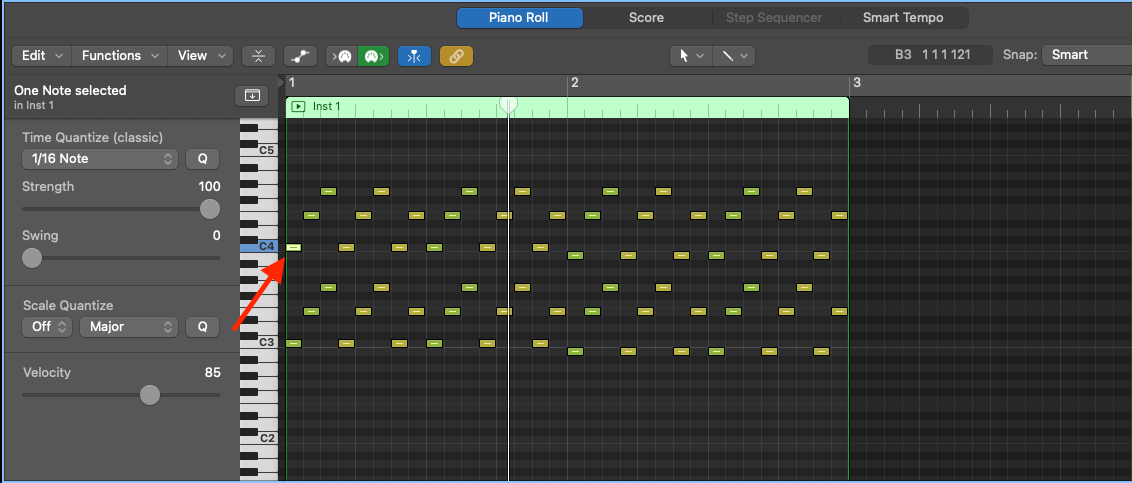
Use “Shift+E” to select all of the same MIDI notes by pitch.
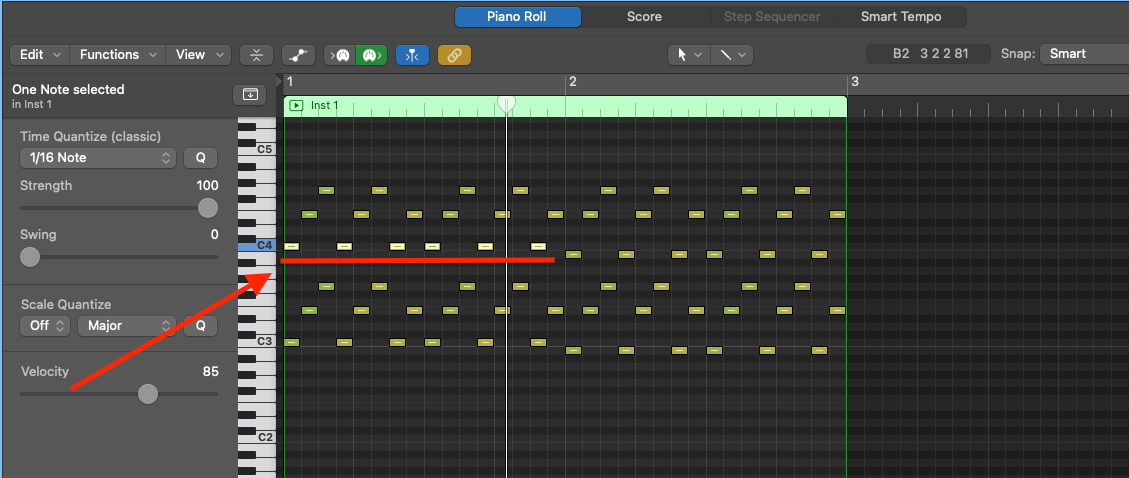
2. Select All The Same Notes
This tip is so useful when you want to change the key of a MIDI selection or simply remove all of a certain note within your piece of music.
Select the desired note.
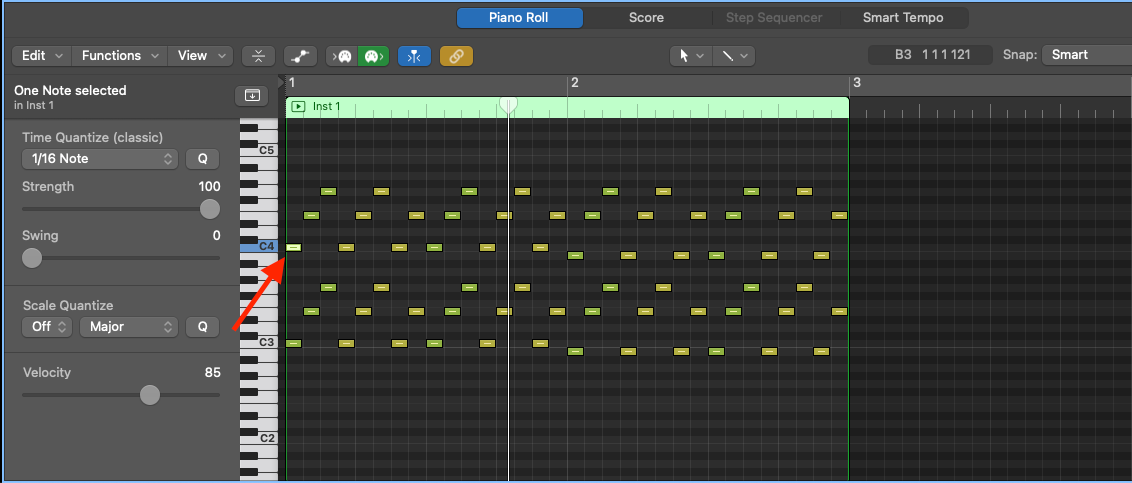
Use “Shift+S” to select all of the same MIDI notes by name
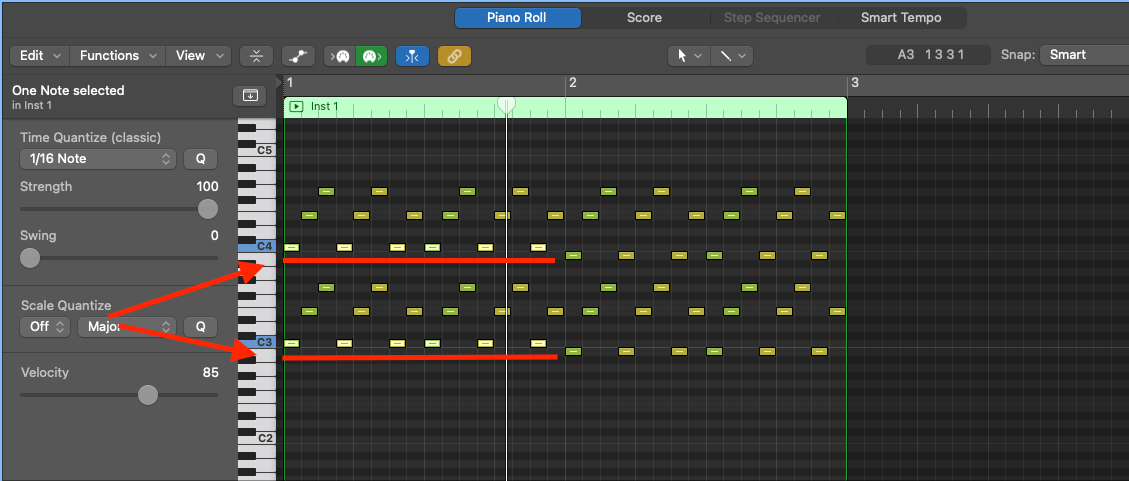
3. Easily Copy Notes
I use this all the time when sketching out my ideas. I simply play in a section of my idea and then use this hack to extend it.
Hold down the “Option” key while dragging a MIDI selection to duplicate it.
When you click on it you will see a little green plus sign that indicates you are about to copy something.
4. Select All Following Same Pitches
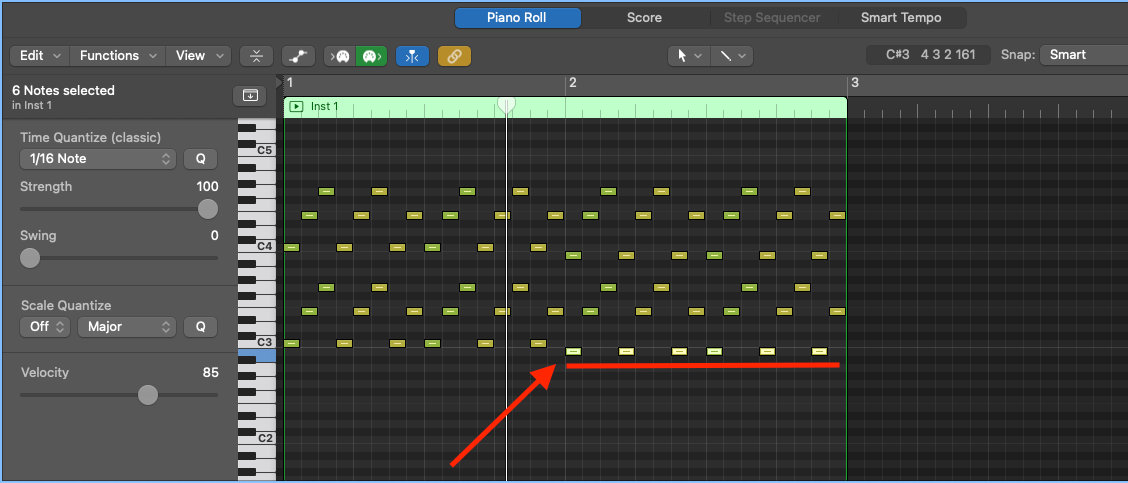
So what happens when you have copied a load of arpeggios but want to change the chord halfway through? You use this little trick that’s what.
Select the note that you want to become the start of the new selection.
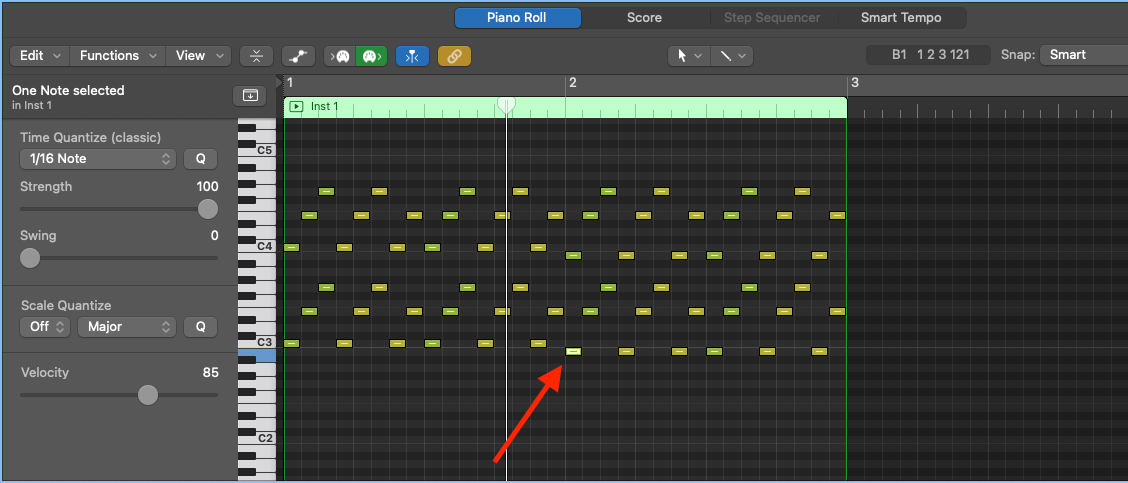
Use “Shift+ctrl+F” to select all of the following notes of the same pitch
5. Invert Selection
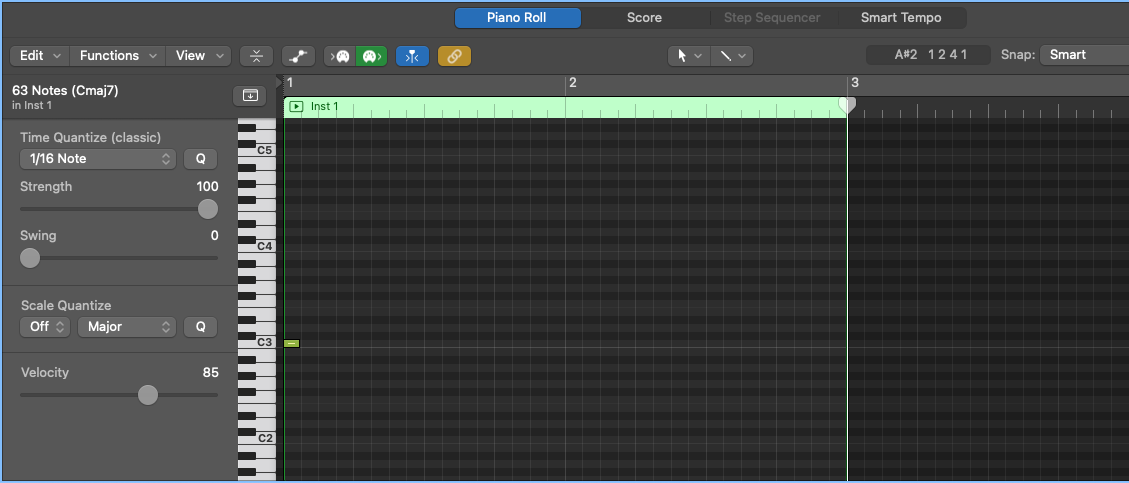
I often copy a region and only want a single note left (usually the first one). I would normally click and drag to make my selection which is actually more annoying than it sounds. This little tip really does the job of fixing this.
To delete all but one MIDI note, click on the note you want to keep.
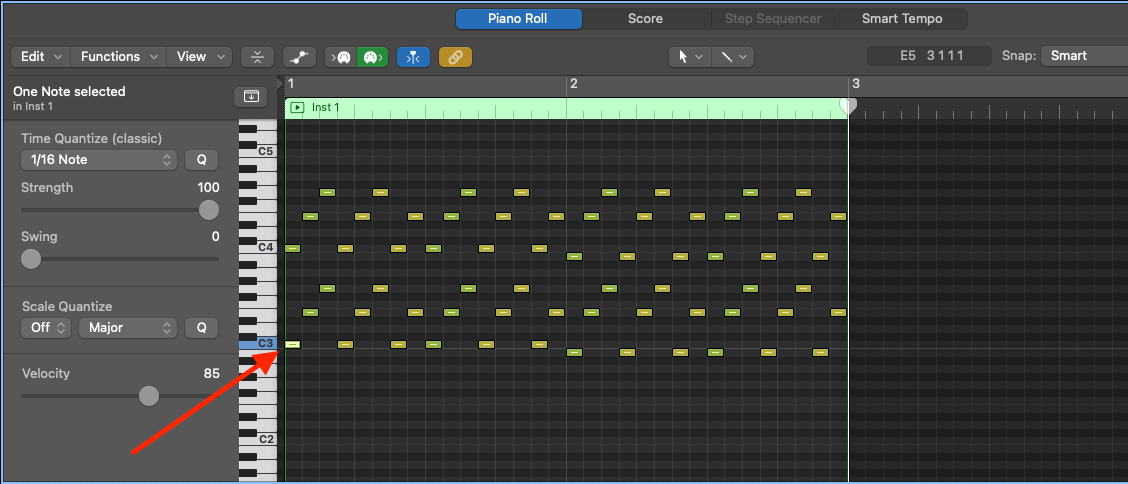
Use “Shift+I” to select all of the other MIDI notes.
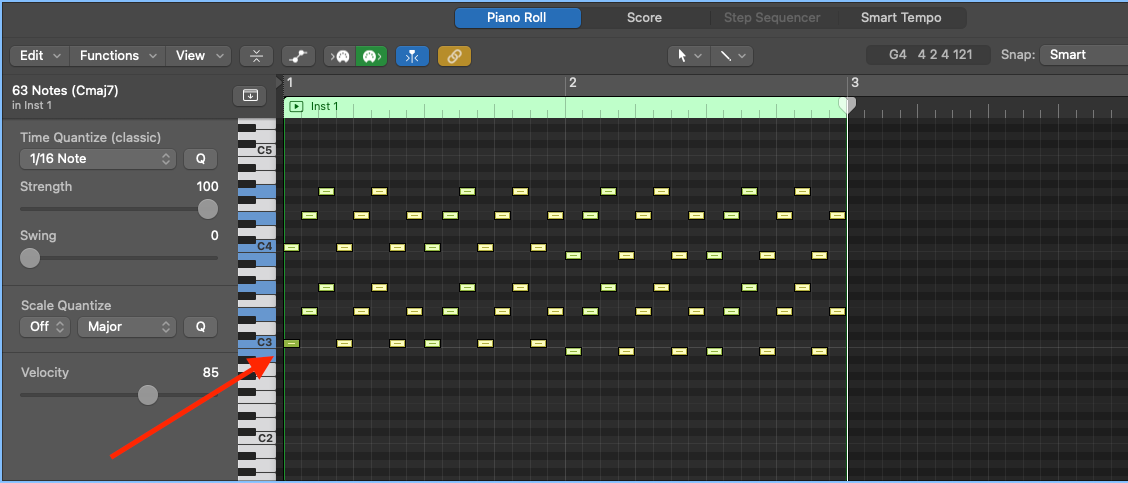
Use “Backspace” to delete the selected notes. Leaving you with the note you want to keep.
Happy Producing!

Happy composing!Rich
Read next
- Auto Colour Tracks in Logic
Do you want to make your Logic Pro session easier to navigate and at the same time make it look like an artist's paint palette? Then you need 'Auto-assign track colours'! Let me show you...
- How to Send a Logic Pro X Project
I frequently need to send Logic projects to other composers for collaborations and for recording sessions when I record with an orchestra. It is very simple to do, you just have…
- How to Create a Click Track In Logic Pro X
Sometimes you need to have the click created as a track in logic so that you can share the printed audio file with other producers. Let me show you how to do this.
- How to Colour Markers in Logic Pro X
When creating an arrangement of a piece of music or a song it is really important to be able to quickly and easily navigate around the individual sections. That is where coloured markers can come in handy.